




Taking a screenshot in Windows is quick once you know the shortcuts. Whether you need the whole screen, just one window, or a custom area, Windows has several built-in tools. Let’s walk through them step by step.
1. Full-Screen Screenshot with Print Screen
This is the classic way to grab everything you see.
- Find the PrtScn (Print Screen) key on your keyboard.
- On some laptops, you may need to press Fn + PrtScn.
- Press PrtScn.
- Nothing seems to happen, but the screenshot is copied to your clipboard.
- Open an app like Paint, Word, or even an email.
- Press Ctrl + V to paste.
- Your full-screen capture appears.
- Save the image by pressing Ctrl + S.
Tip: If you want the file saved instantly, press Windows Key + PrtScn. The screenshot goes straight into Pictures > Screenshots.
2. Capture Just the Active Window
Sometimes you don’t need the whole screen—just one program.
- Click on the window you want to capture (e.g., your browser).
- Press Alt + PrtScn.
- This copies only that window to your clipboard.
- Paste with Ctrl + V into Paint, Word, or another app.
3. Use Snipping Tool (Windows 7, 8, 10)
The Snipping Tool gives you more control.
- Open the Start menu, type Snipping Tool, and click it.
- Click New, then drag your mouse to select the area you want.
- Edit with the pen/highlighter, then click File > Save As.
4. Use Snip & Sketch (Windows 10 & 11)
 This is the modern replacement for Snipping Tool.
- Press Windows Key + Shift + S.
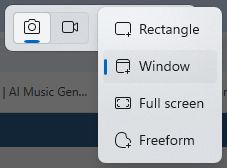
- The screen will dim, and a snipping toolbar appears at the top.
- Choose your snip type (rectangle, freeform, window, fullscreen).
- Freeform: Draw a freeform shape around an object.
- Rectangle: Drag the cursor around an object to form a rectangle.
- Window: Select a window, such as a dialog box, that you want to capture.
- Full screen: Capture the entire screen.
- Video snip: Capture a video clip of a rectangular selection of any part of the screen you like.
- Drag or click to capture.
- A notification pops up—click it to open the editor.
- Save, copy, or annotate your screenshot.
5. Use Game Bar (Windows 10 & 11)
Great for gamers—or anyone wanting quick captures.
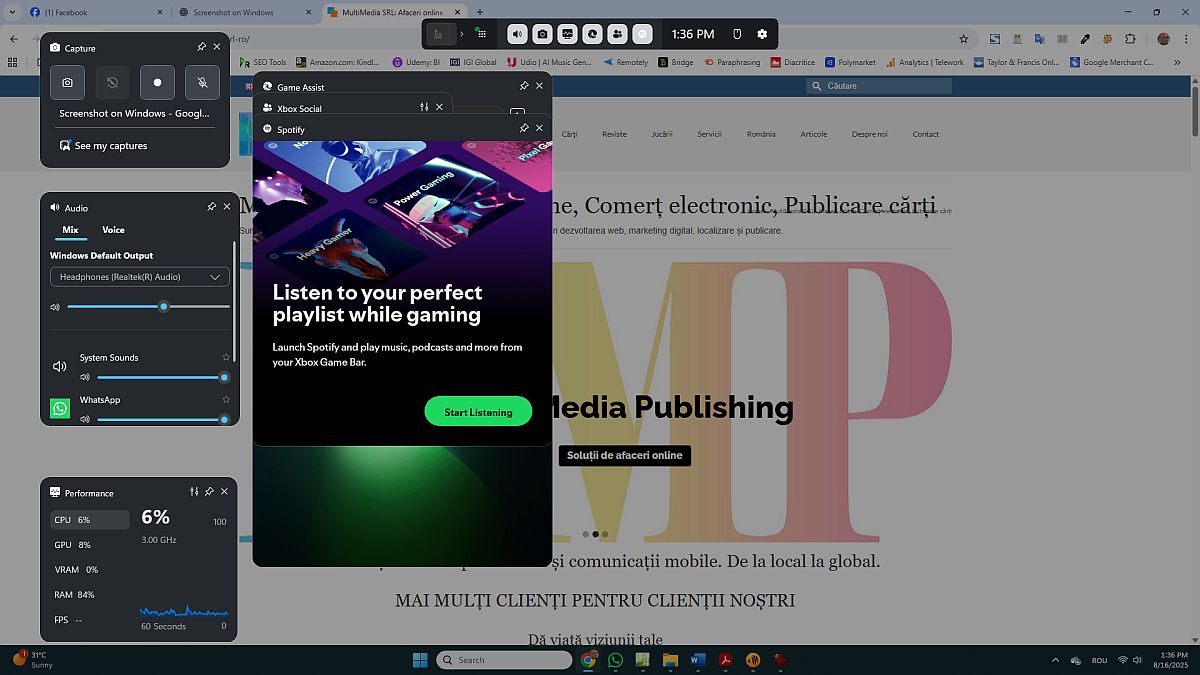
- Press Windows Key + G to open the Game Bar.
- Click the camera icon (or press Windows Key + Alt + PrtScn).
- Screenshots are saved in Videos > Captures.
6. For Extra Features: Third-Party Apps
If you want scrolling screenshots or advanced editing:
- Greenshot – Simple and free.
- ShareX – Powerful, open-source, highly customizable.
- Snagit – Paid, professional-level editing and sharing tools.
Summary
- Full screen → PrtScn / Windows + PrtScn
- Active window → Alt + PrtScn
- Custom area → Windows + Shift + S
- Gaming → Windows + G

Advanced Persistent Threats in Cybersecurity – Cyber Warfare
This pivotal book serves as both a detailed analysis and a call to action for anyone involved in the digital security realm.

Web 2.0 / Social Media / Social Networks
Unlock the Power of Digital Connection

What is e-book? A guide for free ebook publishing
A must-read for anyone stepping into the world of digital publishing.
Discover more from MultiMedia
Subscribe to get the latest posts sent to your email.

Leave a Reply