




Taking a screenshot in Windows is quick once you know the shortcuts. Whether you need the whole screen, just one window, or a custom area, Windows has several built-in tools. Let’s walk through them step by step.
1. Full-Screen Screenshot with Print Screen
This is the classic way to grab everything you see.
- Find the PrtScn (Print Screen) key on your keyboard.
- On some laptops, you may need to press Fn + PrtScn.
- Press PrtScn.
- Nothing seems to happen, but the screenshot is copied to your clipboard.
- Open an app like Paint, Word, or even an email.
- Press Ctrl + V to paste.
- Your full-screen capture appears.
- Save the image by pressing Ctrl + S.
Tip: If you want the file saved instantly, press Windows Key + PrtScn. The screenshot goes straight into Pictures > Screenshots.
2. Capture Just the Active Window
Sometimes you don’t need the whole screen—just one program.
- Click on the window you want to capture (e.g., your browser).
- Press Alt + PrtScn.
- This copies only that window to your clipboard.
- Paste with Ctrl + V into Paint, Word, or another app.
3. Use Snipping Tool (Windows 7, 8, 10)
The Snipping Tool gives you more control.
- Open the Start menu, type Snipping Tool, and click it.
- Click New, then drag your mouse to select the area you want.
- Edit with the pen/highlighter, then click File > Save As.
4. Use Snip & Sketch (Windows 10 & 11)
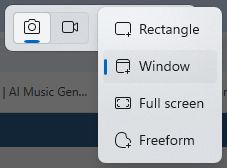 This is the modern replacement for Snipping Tool.
- Press Windows Key + Shift + S.
- The screen will dim, and a snipping toolbar appears at the top.
- Choose your snip type (rectangle, freeform, window, fullscreen).
- Freeform: Draw a freeform shape around an object.
- Rectangle: Drag the cursor around an object to form a rectangle.
- Window: Select a window, such as a dialog box, that you want to capture.
- Full screen: Capture the entire screen.
- Video snip: Capture a video clip of a rectangular selection of any part of the screen you like.
- Drag or click to capture.
- A notification pops up—click it to open the editor.
- Save, copy, or annotate your screenshot.
5. Use Game Bar (Windows 10 & 11)
Great for gamers—or anyone wanting quick captures.
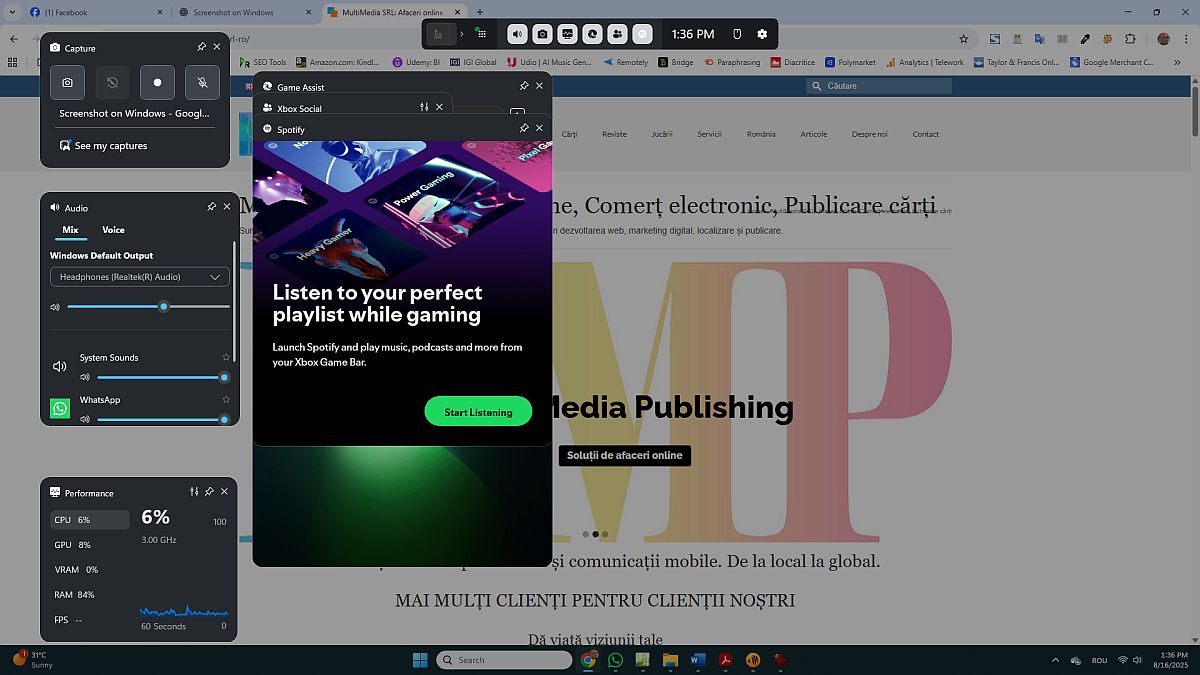
- Press Windows Key + G to open the Game Bar.
- Click the camera icon (or press Windows Key + Alt + PrtScn).
- Screenshots are saved in Videos > Captures.
6. For Extra Features: Third-Party Apps
If you want scrolling screenshots or advanced editing:
- Greenshot – Simple and free.
- ShareX – Powerful, open-source, highly customizable.
- Snagit – Paid, professional-level editing and sharing tools.
Summary
- Full screen → PrtScn / Windows + PrtScn
- Active window → Alt + PrtScn
- Custom area → Windows + Shift + S
- Gaming → Windows + G

How to Translate – English Translation Guide in European Union
Your Essential Guide to English Translation in the European Union

Big Data Ethics in Research
A critical exploration of the ethical challenges and legal implications associated with Big Data.

Information and Communications Technology in Romania – Comparative Analysis with the EU, Social Impact, Challenges and Opportunities, Future Directions
Perfect for policymakers, researchers, and ICT enthusiasts ready to explore Romania’s potential in the European digital sphere.
Discover more from MultiMedia
Subscribe to get the latest posts sent to your email.

Leave a Reply